Feature guide
Your agents' scheduled tasks
Schedule an agent to work on its own every day, every week, every month or just once, and get its report in the app, by email or in a channel.
In this guide
Tasks live in AI Agents, on the Tasks tab. Available depending on your plan: the free plan doesn't include them.
What you'll find on the Tasks tab
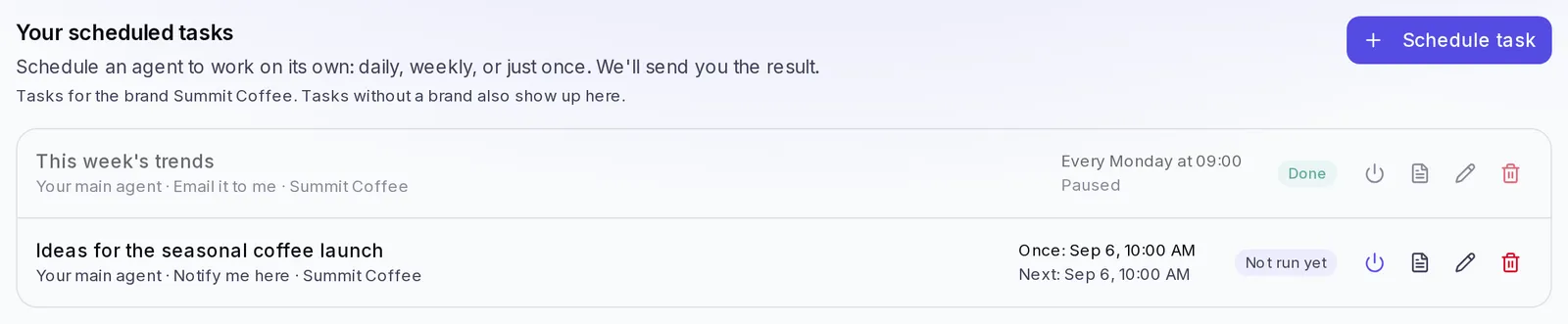
At the top you'll see the title Your scheduled tasks and the Schedule task button. Below it, the list of your tasks. Each row shows you:
- The task's name and, when it applies, a label with the section of the agent that does it (for example, Studio or Analysis).
- Who does it (for example, Your main agent, a specialist or One of your agents), where it delivers the result and which brand it works on.
- How often it runs, written as a sentence: “Every Monday at 09:00”, “Every day at 08:30”, “On day 1 of each month at 10:00” or “Once”.
- The next time it will run (“Next: …”), or Paused if you paused it.
- The result of the last run: Done, Failed, Skipped or Not run yet if its turn hasn't come yet.
The list shows the tasks for the brand you have selected in the side menu. Tasks without a brand also appear, marked in amber with No brand, so you don't miss them.
Schedule a task for an agent
- Go to AI Agents and open the Tasks tab.
- Click Schedule task. The Schedule a task window opens.
- Write a short Name so you can recognize it. E.g.: “Monday trends”.
- In Who does it?, choose the agent: Your main agent, one of the Specialists or, if you have them, one of Your agents.
- Check the line that tells you which brand it will work on: “It will work on the brand …”. If you want it to work on another one, close the window, switch brands in the side menu and start again.
- In What should it do?, write the job the way you'd ask a person. Your agent already knows your brand, so you don't need to explain it. E.g.: “Check the trends in my niche and give me 3 ideas to film this week.”
- In How often?, choose Daily, Weekly, Monthly or Once:
- Daily: choose the time.
- Weekly: choose the day of the week and the time.
- Monthly: choose the day (from Day 1 to Day 28) and the time.
- Once: choose the exact date and time.
- Below, you'll see when it will run for the first time: “It will run on …”. Check that it's what you expect.
- In Where should we send it?, choose Notify me here, Email it to me or, if you've already connected a channel, Send it to a channel (and then pick which one in Pick a channel…).
- Click Save task. You'll see the message Task scheduled and the task will appear in the list.
If the job belongs to a different specialist, a notice tells you who will do it.
Ask your agent in the chat
You don't have to fill in the form: you can also ask your agent in a conversation. E.g.: “Schedule a summary of what I posted during the week for every Friday at 6 p.m.”
- First the agent shows you what it's going to schedule: the name, what it will do, how often, when the first time will be and which brand.
- If you agree, confirm it. Only then does it schedule it.
- When it's saved you'll see Saved with the task's name and the Undo button for a few seconds, in case you change your mind.
From the chat, delivery can be in the app or by email. If you want it to go to a channel, edit it afterwards from the Tasks tab.
View a scheduled task's report
Every time a task runs, it leaves a report of what it did.
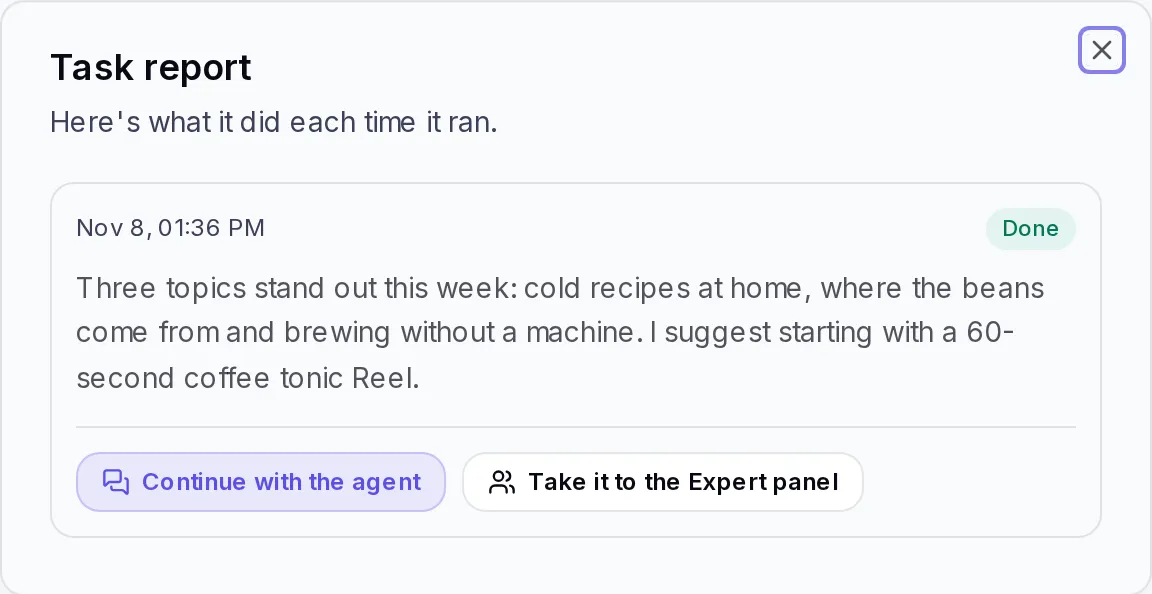
- In AI Agents › Tasks, click the task's row (or the View report button on the right).
- Task report opens, with one entry for each time it ran, from newest to oldest. Each one has its date and its status: Done, Failed or Skipped.
- When it went well, you see the full result. Below it you have two buttons:
- Continue with the agent: opens a conversation with the agent that did it, with your job and the report already inside, so you can ask for changes or the next step. If you click it again, you go back to the same conversation.
- Take it to the Expert panel (if you have the panel in your account): opens the panel with the report loaded, so you can turn it into ideas, scripts or Brain notes.
- When it didn't go well, instead of the result you see a sentence that explains what happened and what to do (we cover it in If something doesn't work).
If it hasn't run even once yet, you'll see “It hasn't run yet”.
Where the result reaches you
- Notify me here: you get a notice in the app's bell with a preview of the result. When you open it, you go straight to the report.
- Email it to me: besides the notice in the app, you get the result at your user's email.
- Send it to a channel: the result arrives at your Telegram, your Slack or the team email you connected in Channels (see Channels). If the channel fails, nothing is lost: we leave you the notice in the app and the report stays saved.
The app notices and the email go to the person who scheduled the task, not to the rest of the team.
Reports on Home
On Home, the Agents and scheduled tasks section shows your upcoming tasks and the new reports for the brand you have selected. From there:
- Click View report to open it in full in AI Agents › Tasks.
- Click Mark as read to remove it from Home once you've reviewed it.
- Click View tasks to go to the full list, or Schedule to create a new one.
Home only shows what's pending: a report leaves it when you mark it as read or after a few days. It isn't deleted: it stays in AI Agents › Tasks. We also explain this in Read your agents' reports.
What time a task runs and which brand it uses
The time is yours. The time you choose is your clock's, the one on the device you schedule it from. That's why the window shows you “by this device's clock (it's … right now)”. If the clocks change for daylight saving time in your country, the task keeps running at the same time on your clock.
The brand comes from the selected brand. A new task works on the brand you have selected in the side menu; it can't be changed in the window, it's only shown to you. When you edit a task, it keeps the brand it already had. If you ask your agent for the task in the chat, it works on that conversation's brand.
If no brand is selected, the window warns you in amber: “No brand is active: pick one in the side menu so the task can create content, campaigns or analyses”. If your account has several brands, select the right one in the menu and edit the task so it doesn't work on the wrong brand.
A one-time task runs on the date you chose and then shows “Its date has passed and it won't repeat”. You don't need to pause it.
If a brand moves to another account, its tasks arrive paused, with the notice “Paused: the brand changed accounts. Review it and turn it on.”. Review each one and, if everything is fine, turn it back on.
Pause, edit or delete a task
Each row has four buttons on the right:
- Pause / Resume (the power button): keeps the task still without losing it, and turns it back on whenever you want. A paused task looks dimmer and says Paused.
- View report: opens its report.
- Edit: opens Edit task with everything it had. Change what you need and click Save task. You'll see Changes saved.
- Delete: asks you to confirm (Delete this task?). Once deleted it won't run again and it can't be undone.
Who can schedule tasks and how many
- To create, edit, pause or delete tasks you need a role that can edit in the account. With a read-only role you can see the list and the reports.
- Each plan allows a maximum number of tasks. If you reach the limit, you'll see “You've reached your plan's task limit”. Delete one you no longer use or upgrade your plan.
- Every time a task runs it uses your account's credits, just as if you had asked for it by hand. See What credits are.
If something doesn't work
- The report says “You ran out of credits this month, so we skipped this run”: you also get a notice. The task tries again on its next date. If you don't want to wait, see I ran out of credits.
- “The agent that ran it no longer exists”: you deleted the custom agent that did it. Click Edit and choose another one in Who does it?.
- “You no longer have access to this task's brand”: when you edit it, it keeps its brand, so it can't be changed. Delete it and schedule it again with one of your brands selected in the side menu, or ask whoever manages the account to give you access to that brand.
- “The result is ready, but we couldn't send it to the chosen channel”: the report is in the app. Check the channel in AI Agents › Channels with the Test button.
- “Your plan no longer includes scheduled tasks, so we paused it”: your plan changed. When you go back to a plan that includes them, resume it.
- “To schedule a task, go into the account directly…”: if you manage one of your agency's clients, the task has to be created while signed in to that account, not from the view where you manage the client.
- The task ran at a different time than you expected: open Edit, check the time and click Save task from the device you normally use. That way it keeps your clock's time.
- The agent won't schedule the task from the chat: if you attached a photo or a PDF in that conversation, the agent won't schedule anything from there. Open a new conversation or use the Schedule task button.