Feature guide
Documents and digital signature
Prepare contracts, proposals and authorizations, send them to your clients to sign, track who has already signed and download the signed document with its certificate.
In this guide
Where it is
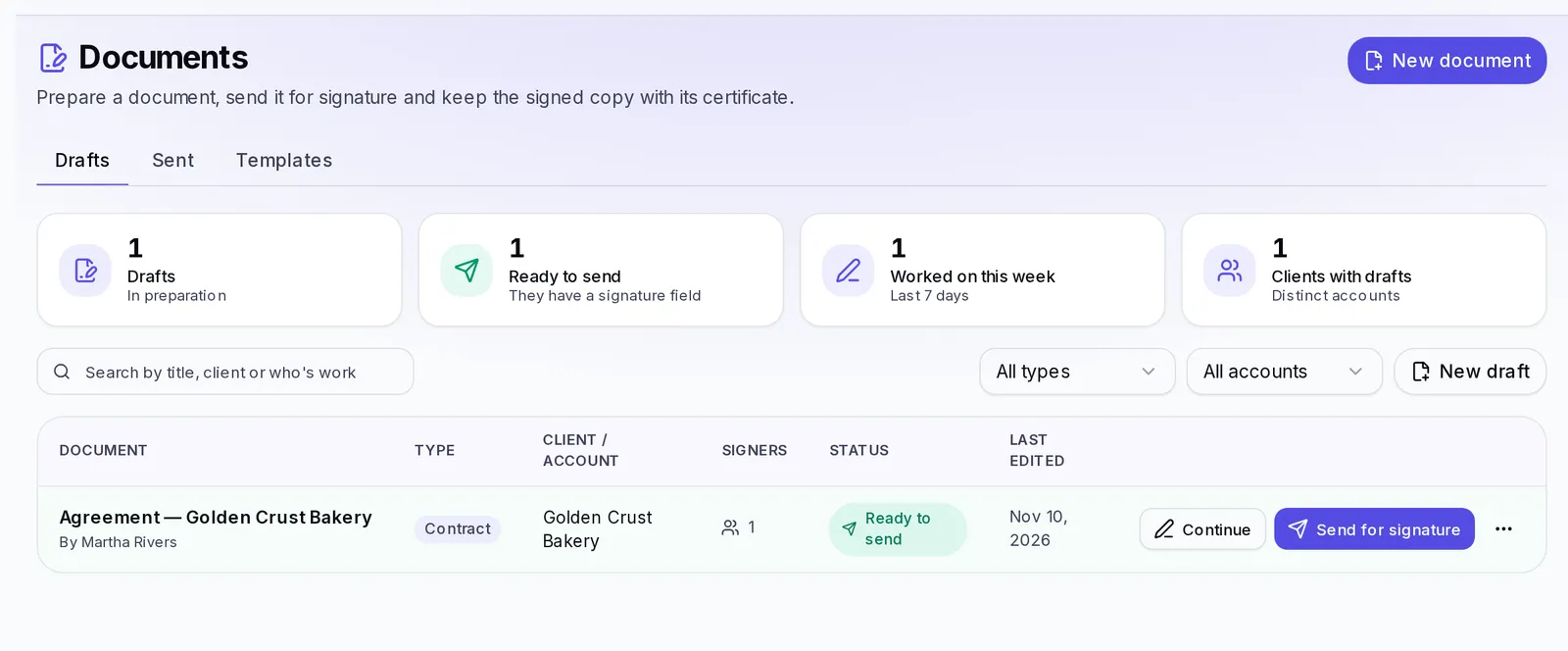
Go to your agency's menu and open Documents. There are three tabs, in the order you work with them:
| Tab | What's there |
|---|---|
| Drafts | The documents you're preparing for a specific client |
| Sent | What you've already sent for signature, with each person's status |
| Templates | The models you reuse: Krellot's and your agency's |
The idea is simple: the template is the model and isn't touched when you use it; from it you make a draft for each client; and when the draft is ready, you send it.
Send a document for signature
Step 1 — Create the draft
- Tap New document (top right).
- Choose where it starts from: one of your templates or Start from scratch.
It's created as a draft and opens so you can edit it. You can also start from the Templates tab, with Use template on the one you want.
Step 2 — Write the document for that client
In the draft, write or adjust the text. With Add to the document you add parts:
- Heading, Paragraph, List, Line, Space and Page break for the content. You can make a word Bold, Italic or Underline.
- Signature, Signature date and Signer name: where each person signs. If several people sign, Everyone's signatures, in columns puts them side by side.
- Field the signer fills in: a blank the other person fills in when signing, like their address or their ID. It can be Text, Date, Initials or Checkbox, and can be marked Required.
While you write, in This is what the signer will see you see the document exactly as it will reach the other person.
In the Drafts list, each one tells you how it's going: In progress, Signature missing (it's missing a place to sign) or Ready to send.
Step 3 — Choose who signs and send it
- Tap Send for signature (in the draft or on its row in the list).
- In Who signs, type each person's Name and Email. Use Add another person if more than one signs (up to 5).
- In Until when can it be signed?, leave No deadline or choose 7, 15 or 30 days.
- Tap Send for signature.
You'll see It's out: each person got their link by email. If you also want to send it by WhatsApp, tap Copy link right then: for security we don't show them again.
Only the agency's owner can send documents for signature, resend them, cancel them and delete templates. The editors on your team can prepare templates and drafts.
Step 4 — Track the status
In the Sent tab you see each document with its Reference number, the client, the signers and how many have signed ("1 of 2 signed"). Each person shows up as Not opened, Opened it, Signed or Declined, and the document as Awaiting signature, Signed by everyone or Cancelled.
Use the search box and the status, type and account filters to find one.
- Send again: if someone lost their email, we send them the document again with a new link, and the previous one stops working. It only shows up for people who haven't signed yet.
- Cancel sending: the links stop working; whatever was already signed stays.
Step 5 — Download the signed document
When everyone has signed, the document changes to Signed by everyone and Download signed shows up. The PDF has the full document and, at the end, the signature certificate. We also let you know by email when it's complete.
Create and look after your templates
In Templates you'll find two groups:
- Krellot templates: ready-made models so you don't start from a blank page. You can look at them with Preview, use them or duplicate them, but not change them.
- My templates: the ones your team created, only for your agency.
To create one, tap New template. Give it a Name, a Description and a Document type (contract, proposal, agreement, minutes, report or other), choose How many people sign? and build the content just like a draft. Tap Save.
In Details that change on every send you define each client's details, like the amount or the start date. To make them show up in the text, write their short name between double curly braces: {{amount}}. That way, in each draft you know exactly what to change.
To adjust a template without losing the original, tap Duplicate. Deleting a template doesn't touch the documents you've already sent.
If something goes wrong
- "Signer 1 has no signature field yet.": each person who signs needs their Signature block. Add it with Add to the document and choose which signer it belongs to.
- "Antes de enviar, cambia en el texto estos datos que siguen sin poner" (Before sending, replace these details that are still empty in the text): there are details left between double curly braces. Replace them with the real details.
- "Hay dos firmantes con el mismo correo" (Two signers have the same email): each person needs their own email.
- You can't send for signature, resend or cancel a send: only the agency's owner can. Ask them to do it.
- Someone says their link won't open: if you resent the document, only the most recent link works. If the send had a deadline, check in Sent until when it could be signed; if that's passed, prepare a new draft and send it again.
- Download signed doesn't show up: someone still has to sign. Check each person's status in Sent.