Feature guide
Your brand settings
The sections in Brand → Settings, your visual identity, your change history and how to keep your brand up to date or delete it.
In this guide
How your brand affects everything you create
Your brand is the starting point for almost everything else. When you change something here, you'll notice it on other screens:
- Ideas and scripts (in Studio): they're written for your audience, in your tone and following your framework. Your content pillars show up so you can ask for ideas on a specific topic.
- Carousels, stories and freebies: they use the colors, fonts and logo from your Identity tab.
- Trends and News: what you see depends on the niche you choose in your Brand Profile.
- Your agent: it knows your brand and answers with it in mind. More in AI Agents.
If you work with several brands, each one has its own settings: what you change in one doesn't touch the others.
How to read your progress
At the top you'll see how many sections you've completed and a bar with your percentage. Each section shows its status:
- Complete: ready.
- In progress (in yellow): it has something, but it's missing information.
- Pending: it's still empty.
If you're missing sections, Krellot offers to complete them with an assistant. You can also tap Configure with AI whenever you want.
You can view the sections as a Diagram or as a List. To edit a section, tap its card in the diagram (or tap Complete if it's missing information) or open it from the list, change what you need and save.
Edit your settings
Each field is edited on its own, without having to save the whole page:
- Open the section where the information is.
- Tap the pencil (Edit) next to the field.
- Type the change. In lists (like pain points or pillars) you can add or remove items.
- Tap Confirm. If you change your mind before confirming, tap Cancel.
The change is saved right away and recorded in your change history.
Brand Profile
Identity and positioning: the brand name, the creator, a short intro line (Tagline), bio, how you describe your business and what sets you apart. This is also where you choose your niche, which decides which trends and which news you see.
Basic information
The Identity group in your Brand Profile has the details that introduce your brand:
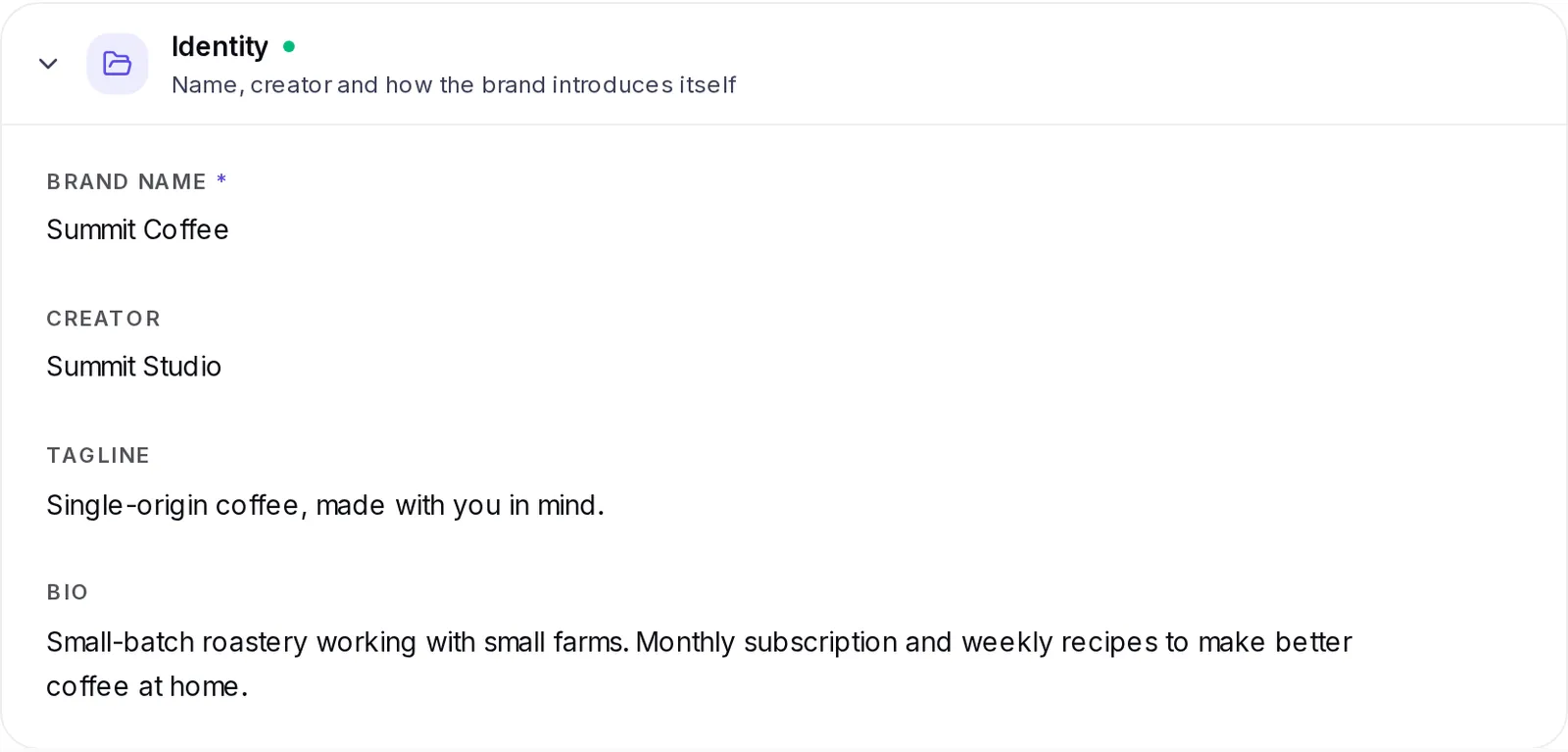
- Brand name: the name it appears under across Krellot. It's the only required field.
- Creator: the person behind the brand.
- Tagline: one line that sums up what you do.
- Bio: how you describe yourself in one or two sentences.
If your brand has linked social networks, you'll see the Social profile below: one row for each network with its account, its followers and its average views. If you just connected an account, its numbers take a little while to show up.
Value proposition
Your value proposition is the reason someone would choose you: what you do, who it's for and what that person gets from you. In your Brand Profile it's built from three pieces of information:
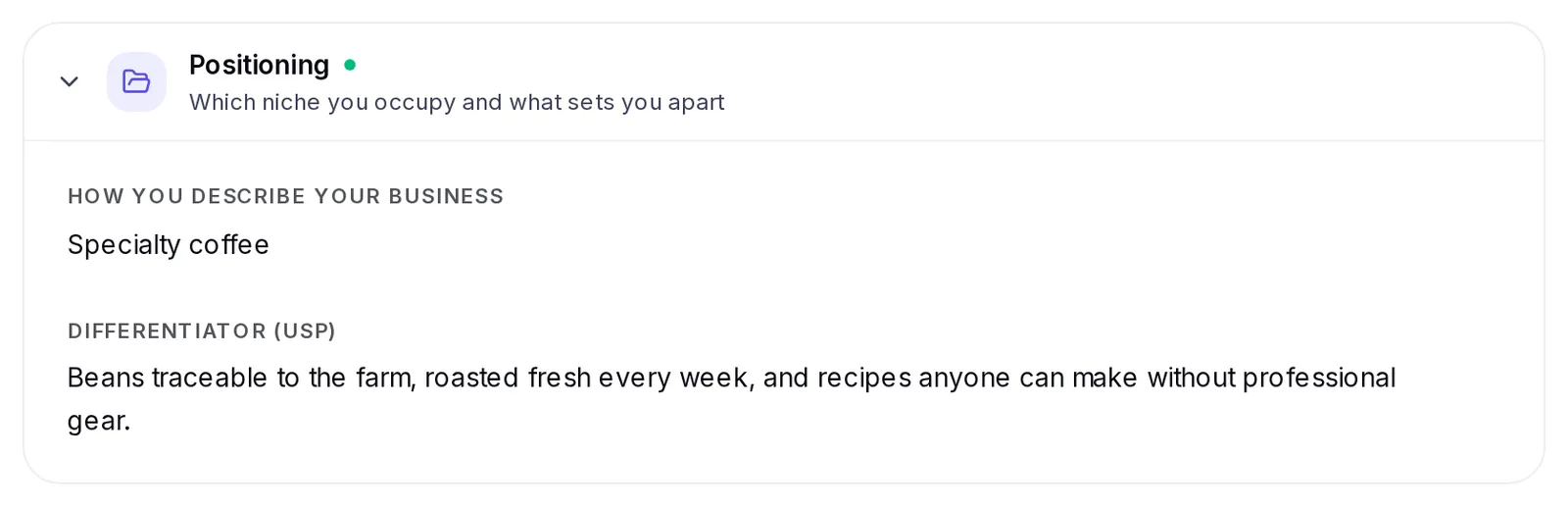
- Tagline: the short version, in one line.
- How you describe your business: what you do and who it's for. For example, "Digital marketing for Latino businesses".
- Differentiator (USP): what makes you unique (you'll see it in the next section).
The more specific it is, the clearer your ideas and scripts are about what you offer and who you're talking to.
What sets you apart
The Differentiator (USP), in the Positioning group, is what you have and your competition doesn't. Write it with details that can be checked:
- Good: "15-minute healthy cooking classes for working moms".
- Weak: "Tasty, healthy food".
A clear differentiator helps keep your content from sounding like any other account in your niche.
Choose your niche and subniches
The Brand niche card, inside your Brand Profile, decides which trends and which news this brand sees.
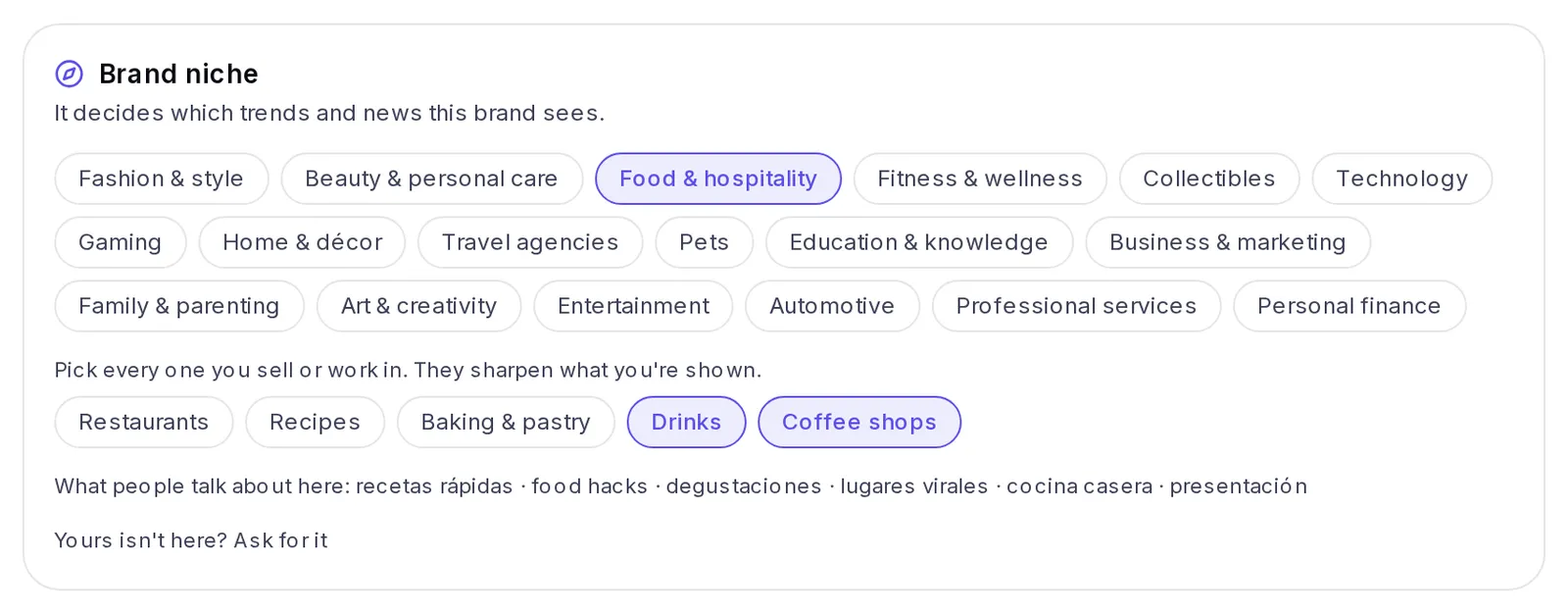
- Open Brand → Settings → Brand Profile.
- In Brand niche, tap the niche that best describes you. You can only have one.
- If your niche has Subniches, tap every one you sell or work in. They fine-tune what you're shown.
- Tap Save. You'll see the notice "Niche saved".
Below the subniches you'll see what people talk about in that niche, so you can confirm it's yours.
Yours isn't listed? Tap Yours isn't here? Ask for it, write the niche and what content you make, and tap Send request. We'll let you know when it's ready.
Add your brand's website
The Website card, also in your Brand Profile, helps Krellot understand your business better and fill in your brand with what your site says.
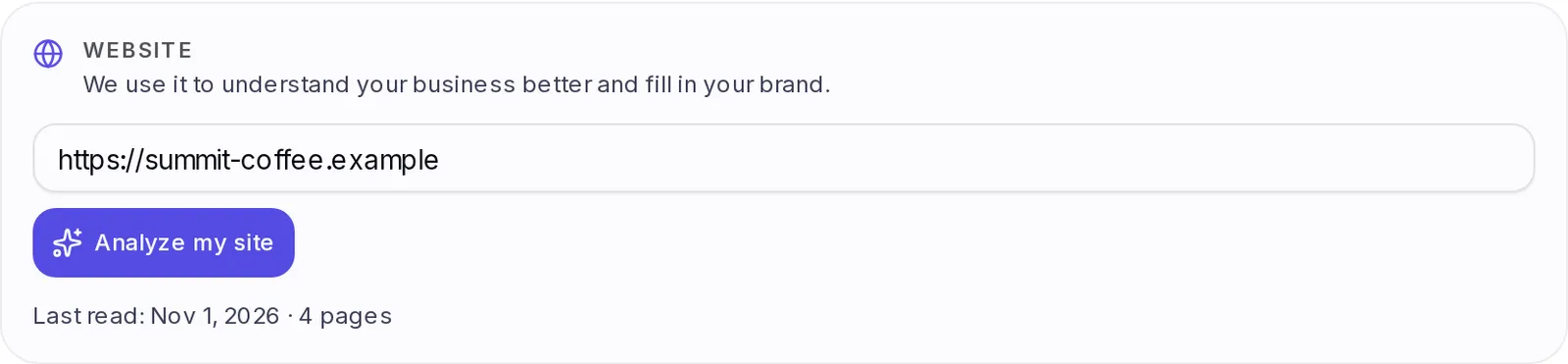
- Open Brand → Settings → Brand Profile and find Website.
- Type your site's address (for example, mysite.com).
- Choose what to do:
- Analyze my site: Krellot reads your site and fills in the brand details it finds. You'll see "Reading your site…" while it works.
- Save: it only saves the address, so it can be read later.
- When it's done you'll see how many pages were read and how many brand details were filled in. If it found information about your business, it also saves it in your Brain so you can review it.
If you don't like the changes, tap Undo right below the result.
Audience
Who you're talking to: who your audience is, their details, the groups that make it up, their language level, their pain points, their desires and their objections. The more specific, the more your ideas speak to real people.
Change your audience
Your audience changes as your business does. To adjust it:
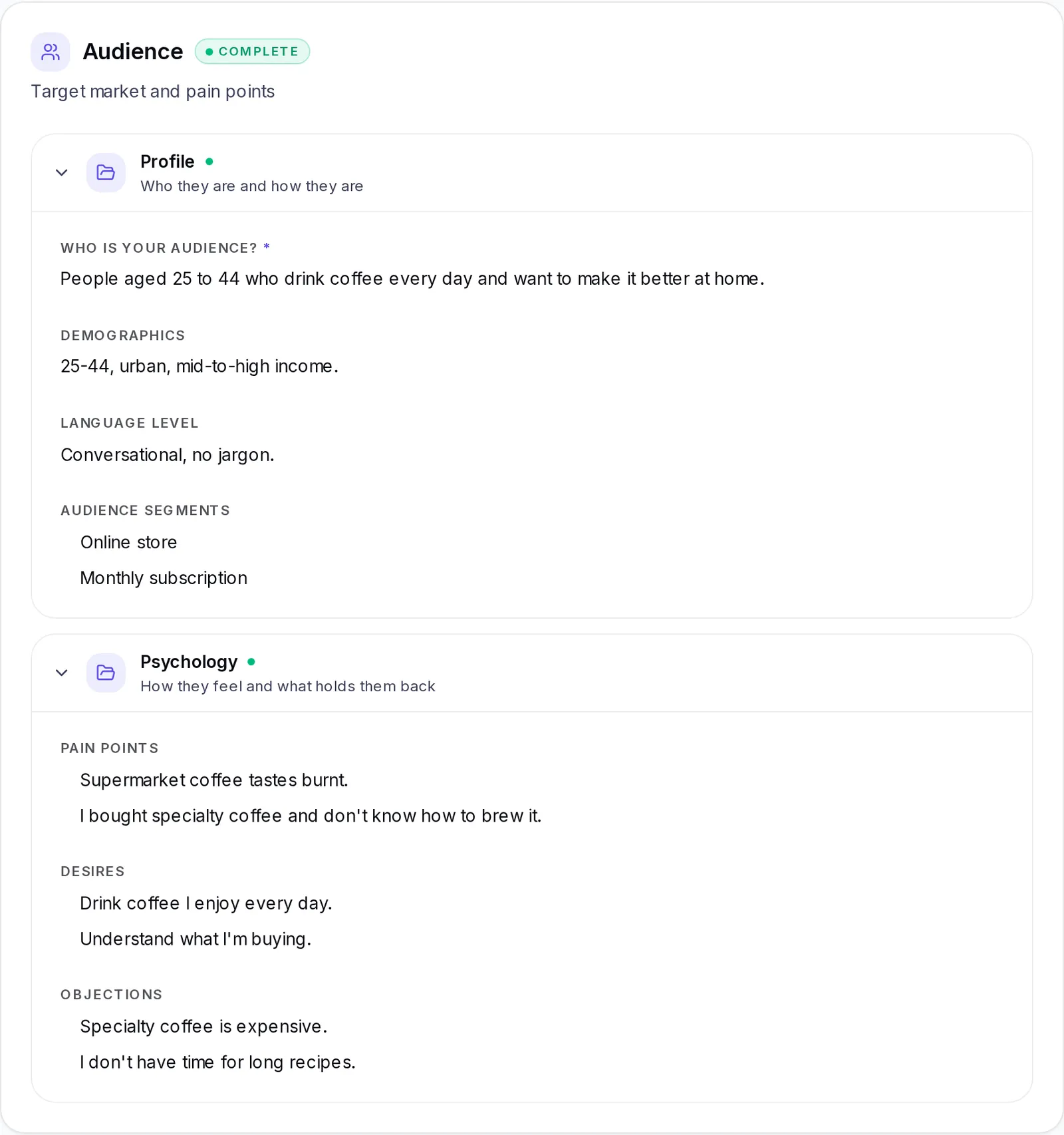
- Open Brand → Settings and go to Audience.
- The Profile group has Who is your audience?, Demographics, Language level and Audience segments. The Psychology group has Pain points, Desires and Objections.
- Tap the pencil on the field you want to change.
- In the lists, use Add pain point, Add desire or Add objection to add a new one, or remove the ones that no longer apply.
- Tap Confirm.
Your next ideas and scripts are already written for the new audience. What you'd already created doesn't change.
Would you rather be guided? Tap Configure with AI, choose Audience and answer the questions.
Tone & Voice
How you talk: style, voice, language, how you open your videos (hook style), your personality traits, the vocabulary that sets you apart, what to avoid and example phrases.
How it affects your content
What you write in Tone & Voice shows in everything Krellot writes for your brand: ideas, scripts and copy.
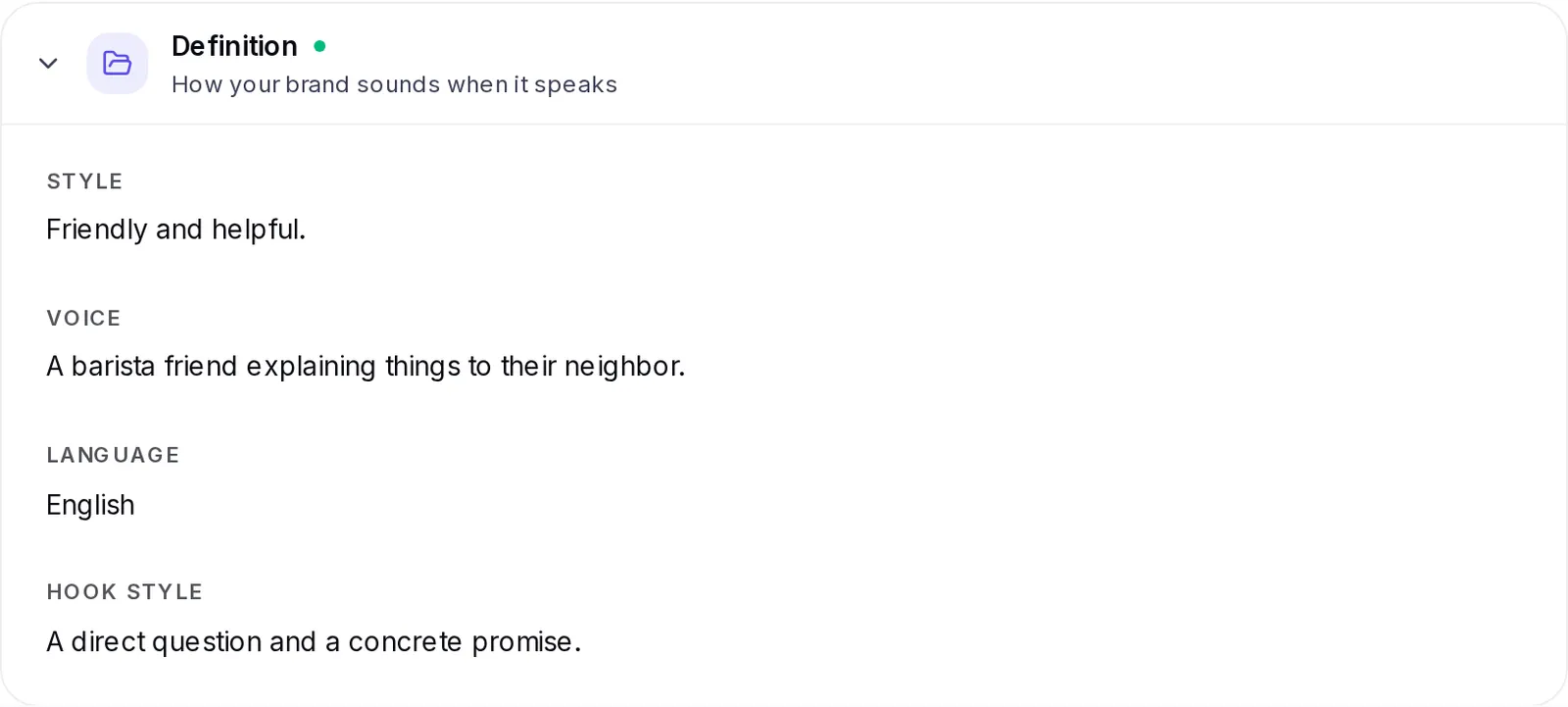
- Style and Voice: whether you sound educational, casual or provocative; direct or full of analogies.
- Language: the way your copy talks, for example Mexican Spanish. The language itself is your account's language.
- Hook style: how your videos open, for example with a direct question that includes a number.
- Personality traits and Signature vocabulary: the words and attitude people recognize you by.
- Avoid: the words or jargon you don't want to see in your copy.
- Example phrases: phrases of yours, just as you'd say them. They're the best clue to how you sound.
If your scripts don't sound like you, start by adding more Example phrases and filling in Avoid. Changes apply to what you create from then on.
Framework
The structure your scripts are built on, split into stages. Each stage has its description, its goal, tactics, the emotion it aims to spark and the most common mistake. If you don't have one, choose one of the Templates you'll see at the top of the section; if you already have a framework that works for you, you can save it with Export as template to use it in other brands. More in Frameworks.
Content Strategy
Platforms, goals and pillars: your content's stage, its goal, the networks you post on, the formats you use, the script format you prefer, how often you post, your content pillars, the conflicts that help you tell stories and example situations.
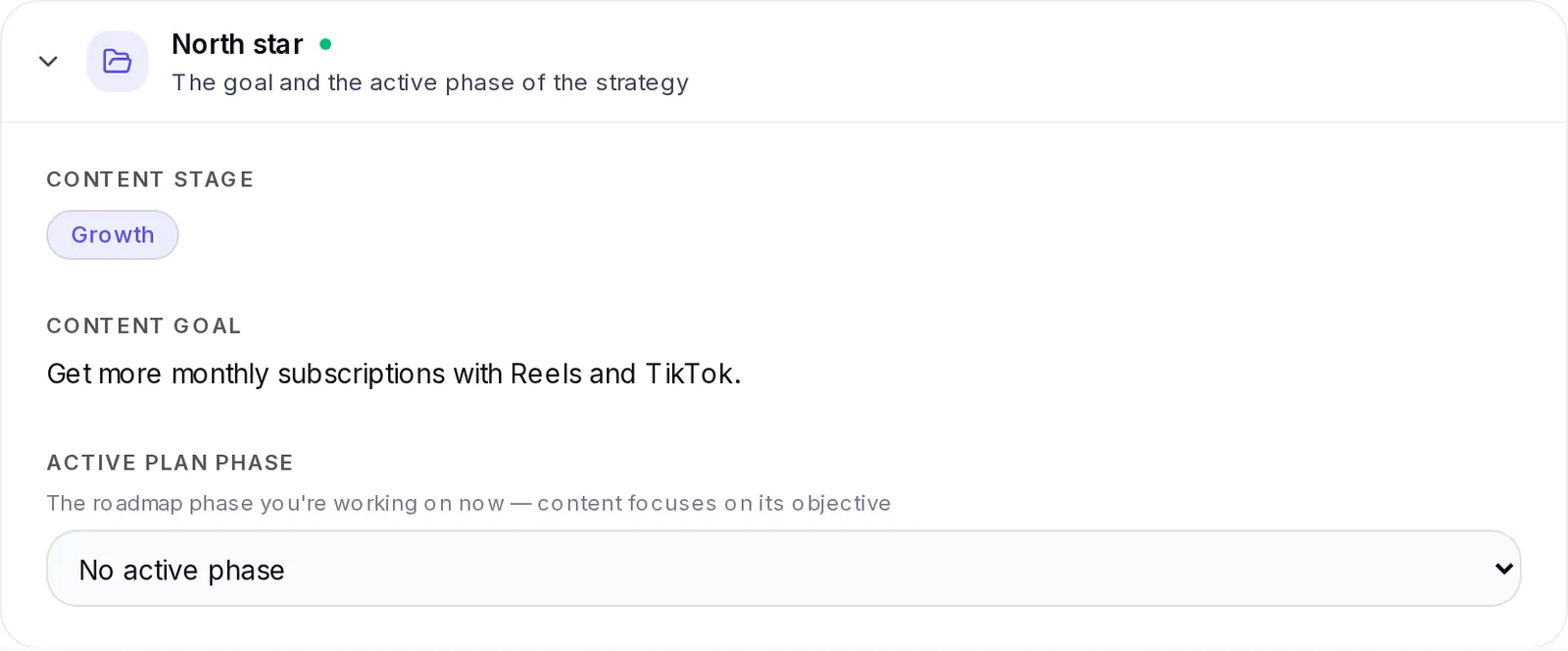
The section is split into three groups:
- North star: the Content stage (a stage of your framework), the Content goal (where you want to take your audience) and the Active plan phase (the phase of your roadmap you're in right now).
- Distribution: your Platforms, your Formats, the Default script format (the structure a script uses when you don't choose another one while creating it) and your Posting frequency.
- Narrative: your Content pillars (the big topics you talk about), the Dramatic conflicts that drive your stories and Example scenarios with specific people and situations.
Don't know where to start? In Strategy templates, tap View templates and choose one: it's applied right away and then you adjust it to your liking. With Create new you build your own template, and with Export as template you save this brand's strategy to use it in others.
Content Roadmap
Your brand's posting phases. Tap Add phase and write its name, its goal, the pillars it works on and the metric that will tell you whether it worked.
Brand goals
Your brand's goals live in three places, each with its own time frame:
- Content goal, in Content Strategy: the overall purpose of everything you post. For example, "For restaurant owners to see me as the go-to marketing expert".
- Goal for each phase, in Content Roadmap: what you want to achieve in each stage (get known, build trust, sell) and the metric that will tell you whether you did.
- This month's goals, in Brain → Goals: specific numbers for this month, like new followers or saves. More in This month's goals.
The content goal and the active phase steer your ideas and scripts toward what you're after right now.
Update your goals
When your business moves to a new stage, update your goals:
- Open Brand → Settings → Content Strategy.
- In the North star group, tap the pencil on Content goal, write the new one and tap Confirm.
- If you've moved to another phase, choose the new one in Active plan phase.
- If the phase doesn't exist yet, go to Content Roadmap, tap Add phase and write its name, its goal and its metric.
- For your numbers for the month, go to Brain → Goals and create or adjust your goals.
Viral Intelligence
The patterns behind the best content: hook formulas, structures, techniques to keep people watching, calls to action and the formats that work best. This section is filled in from your analyzed videos: tap to enrich it, choose the videos and confirm.
Enrich it with your analyzed videos
First you need to have analyzed videos in Analysis (your own or from other accounts you like).
- Open Brand → Settings → Viral Intelligence.
- Tap Select Videos. The list of your analyzed videos opens.
- Choose the ones you want to use. You can search by creator, sort them (Most views, Engagement, Most recent) or tap Select all.
- Tap Extract from followed by the number of videos you chose.
- You'll see "Analyzing your videos…". You can keep working: we'll let you know when it's done.
When it's done, the hooks, structures, retention techniques, calls to action and formats that worked in those videos show up in the section, ready for your next ideas. You can edit or remove them with the pencil, like any other information.
If it tells you it didn't find any analyzed videos, first analyze a few in Analysis.
Performance
Your numbers and insights about what works best for you: your average engagement, how your audience is growing, your best-performing topics and hooks, and the topics you haven't covered yet.
It's split into two groups:
- Key metrics: your average engagement and how your audience is growing.
- Content insights: the topics with the best response, the hooks that have worked best for you and the topics you don't cover yet.
It's filled in with data from your social networks: when you create your brand from Instagram or TikTok, and every time you bring it up to date. At the top of the section you'll see the Your brand's intelligence & metrics card with the date of the last update. To bring it up to date, tap Refresh now; we'll let you know when it's ready. If you don't like the result, tap Undo.
To update it, your brand needs at least one linked social network. If it doesn't have any, go to Metrics, find Connected networks and tap Add network; it's also linked when you connect your Instagram in Connections. You can also write or correct this information by hand with the pencil.
Visual identity
In the Identity tab of Brand you define how your brand looks: colors, typography, logo and style. It's applied to your carousels, stories and freebies.
You can have several visual identities (for example, one for your main brand and another for a campaign). At the top you'll see a tab for each one: tap New to create another, the pencil to rename it or the trash can icon to delete it. If you don't have any yet, tap Create Identity.
You see changes right away, but they aren't saved until you tap the Save button with your identity's name.
Logo
- In the Identity tab, find Logo and tap Upload (or Replace if you already have one).
- Choose your file. PNG with a transparent background, JPG, SVG or WebP work, up to 2 MB.
- Choose where it goes in your designs: banner, corner, center or none.
- Tap Save with your identity's name.
Colors
In Colors you choose your brand's five colors: Accent (highlights), Background, Text (main text), Banner and Muted (subtitles and secondary text). Tap the color box to pick it or type its code next to it.
Don't know which colors to use? In Palette suggestions:
- Tap From current accent to see palettes that go with your accent color.
- Or type your website's address and tap the link button to get the palette from your site.
Tap a suggestion to apply it and tap Save with your identity's name.
Fonts
In Typography you choose the fonts for your carousels: one for Headings and another for Body. If you want, add a third one in Accent (optional). It's the starting point for text in the editor: you can change it in each design afterward.
Visual style
Two fields define your brand's look:
- Mood / aesthetic descriptor: a short phrase that describes your style, for example "Warm editorial". It helps the copy in your designs match that visual tone.
- Patterns to avoid: the Fonts to avoid and Visual styles to avoid you don't want to see in your carousels. Type one and tap Add.
Generate your visual identity with AI
If you don't have an identity defined, Krellot suggests one based on your brand's information:
- Open the Identity tab.
- On the Generate with AI card, tap Generate.
- You'll see the notice "Identity suggested. Review it and save." with the new colors, typography and style already applied.
- Change what you don't like and tap Save with your identity's name.
Change history
Changed something and want to go back? Tap History: you'll see each version of your settings, who made the change and its date. Tap Restore on the version you want; your current version is saved in case you want to come back to it.
Step by step:
- In Brand → Settings, tap History.
- Look over the list: each version shows its date, who made it (You, Your agency, Your team or Automatic update) and what changed. The one you have now carries the Current version label.
- Tap Restore on the version you want to go back to.
- Confirm with Restore.
- You'll see "We restored your configuration.". If you made a mistake, tap Undo on that same notice.
Changes you made with Adapt to my brand from an analysis can be reviewed and undone in Adaptations.
Undo an adaptation made from an analysis
When you tap Adapt to my brand on an analysis, Krellot enriches your brand with what it learned from that content. If you're not convinced:
- In Brand → Settings, tap Adaptations.
- You'll see each adaptation with its date, who made it and which sections were enriched.
- Tap Undo on the one you want to remove.
- Confirm with Undo.
Only what that adaptation changed is reverted: what you set up afterward, like your brand identity, is kept. If you change your mind, tap Undo on the "Adaptation undone." notice. More about adapting in Analysis.
Your files in the Media tab
In your brand's Media tab you keep your brand's files so you can reuse them: logos, reference images and PDF documents. You have them at hand in your ideas, covers, stories and emails without uploading them again. All the details are in Media.
- Open your brand and go to the Media tab.
- Tap Upload file and choose an image or a PDF of up to 10 MB.
- Tap a file to see it full size.
- To delete one, tap the trash can next to its name and confirm with Delete. This can't be undone, and only the account Owner can do it.
Files that come from your visual identity (like your logo) carry the Identity label and can't be deleted from here: you change them in the Identity tab.
What the Opinion and Activity tabs show
Besides Settings, Identity and Media, your brand has two tabs you can check:
- Opinion: the summary "Here's what Krellot knows about you". It brings together the most important things about your brand: your niche, what sets you apart, who you're talking to, what hurts and what your audience wants, your style, your voice and how you hook people. If something doesn't represent you, correct it in Settings. With Share as a carousel you choose the design and turn it into a carousel that opens in Studio.
- Activity: everything that happened in this brand. Ideas generated, scripts and carousels created, changes to the settings, adaptations, connected accounts and more, with who did it and how long ago. Tap Refresh to see the latest.
Delete a brand
If you no longer work with a brand, you can delete it.
- Open the brand and go to Settings.
- In the List view, scroll to the bottom and tap Delete brand. In the Diagram view, the Delete brand button is in the bar at the top right.
- Read the notice and tap Delete brand to confirm.
Only the account's Owner can delete a brand. Brands in an agency's client accounts can't be deleted from here.
If something goes wrong
- "Someone updated this brand recently" or "Someone else updated this brand": someone on your team changed it while you were editing. The screen reloads the data; make your change again.
- "Link a social network to this brand…" when you tap Refresh now: your brand doesn't have a linked network. Add it in Metrics → Connected networks → Add network.
- "We couldn't open that site" when analyzing your website: check that the address is spelled correctly and try again.
- "We couldn't delete the brand": check that you're the account's Owner and try again.