Feature guide
Your white label
Put your agency's name, logos and colors on the platform so your clients work with your brand, and understand what changes for them.
In this guide
Where it is
Open Settings from the user menu in the top bar (see Where your settings are) and go to the Your platform tab.
This tab only shows up on agency accounts and only the owner sees it, because it changes what all your clients see.
Customize "Your platform" with your brand
-
In Your agency name, type the name you want to show. It replaces "Krellot.ai" in the menu and the top bar.
-
Upload your logos with Upload (PNG, JPG or WebP):
- Logo for light backgrounds: used when the menu is light.
- Logo for dark backgrounds: a logo with dark lettering disappears on a dark menu, so upload a light version here.
If you only upload one, that one is used in both cases. To change one, tap Replace; to take it off, Clear.
-
Choose the Accent color (buttons, links and anything selected) and the Menu color (the side menu's background). The menu's text color adjusts on its own so it's always readable.
-
See how it looks in How your menu will look. It's a preview: your platform doesn't change yet.
-
Tap Save. You'll see Changes saved. Reload the page to see the change in your menu.
This doesn't change your websites. Your sites' logo, colors and font are chosen separately, in Sites → Visual identity.
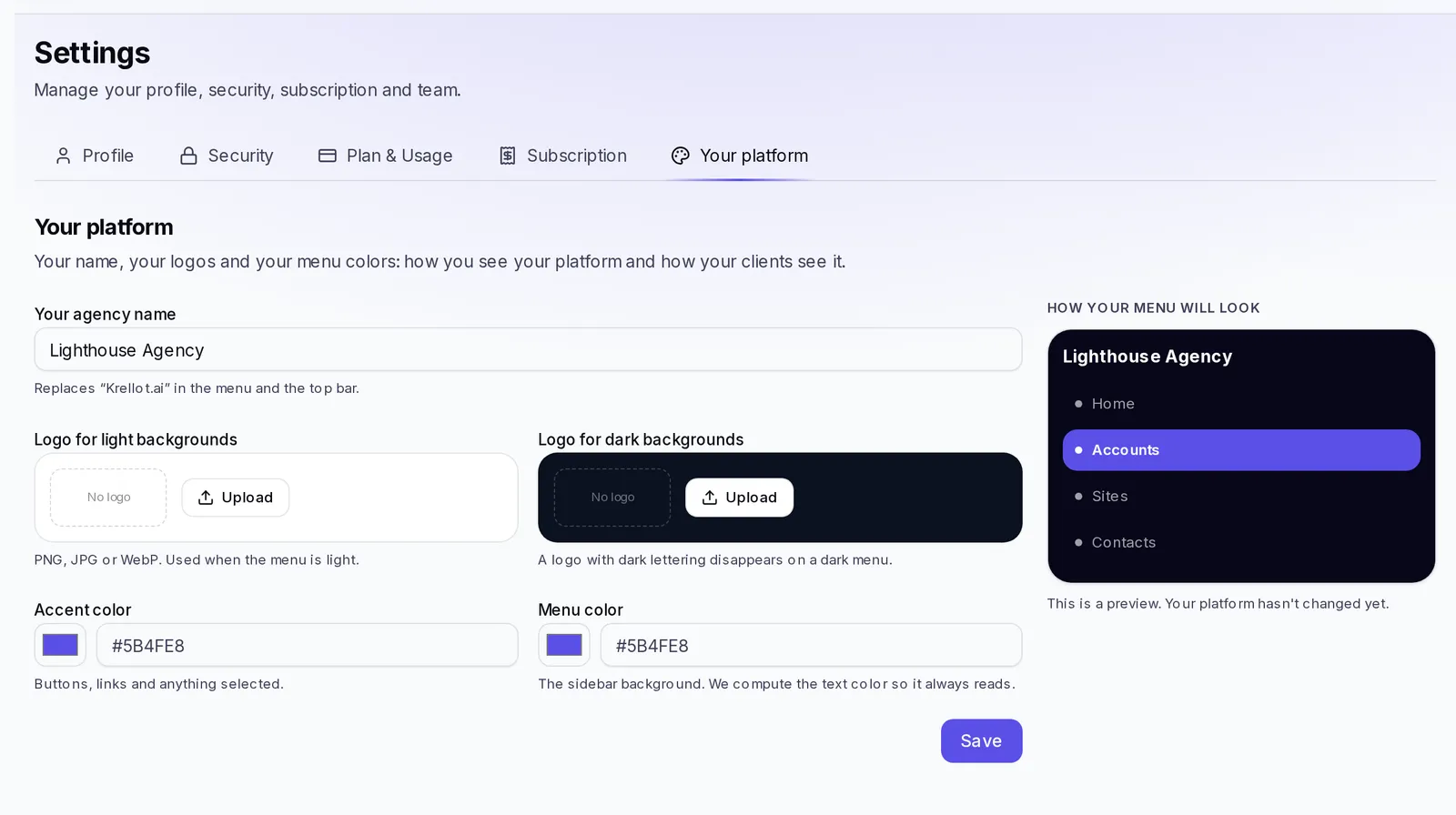
What your client sees with your brand
What changes
- Your name and your logo show up in the menu and the top bar instead of "Krellot.ai", for you and your team as well as for your clients.
- Your colors paint the menu, the buttons and anything selected.
- Your clients don't see Help: the Help menu, the ? button in the top bar, the Ctrl+K shortcut and the "How does this work?" buttons disappear from their screen.
What doesn't change
- Your clients still get help: their agent tells them how each screen is used.
- You and your team still see Help in full, as you do now.
- If you only change the colors (no name or logo), your clients still see Help.
- Your websites don't change: they have their own identity in Sites → Visual identity.
If you remove your name and your logos, the menu goes back to showing Krellot's name and logo, and your clients see Help again.
If something goes wrong
- I don't see the Your platform tab: only the owner of an agency account sees it.
- My logo doesn't show on the dark menu: upload a light version in Logo for dark backgrounds.
- I couldn't upload the logo: use a PNG, JPG or WebP image.
- I saved and don't see the change: reload the page.