Feature guide
Professionals and collaboration proposals
What Professionals is, how to join its waitlist and how to review collaboration proposals in My Inbox if you have it.
In this guide
You'll find it in the side menu, under Professionals (with the Beta label).
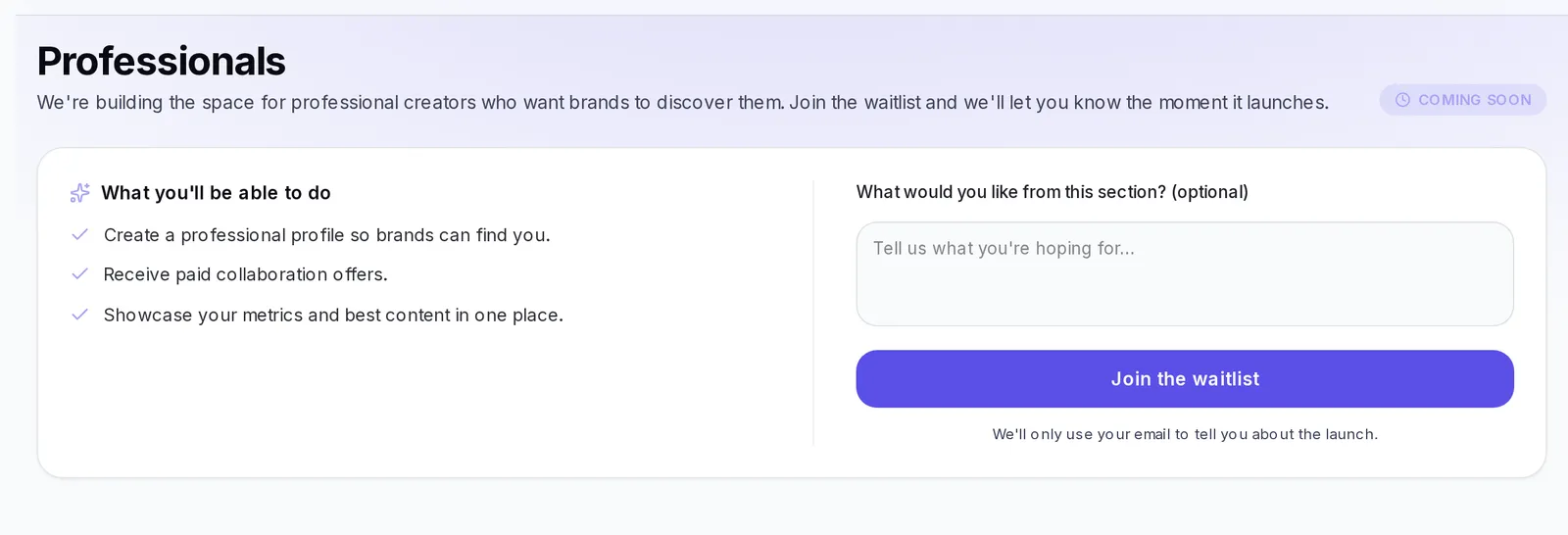
What Professionals is
When you go in you'll see the Coming soon label and the What you'll be able to do box. For now the section isn't available: the screen is only for signing up and telling us what you expect. You don't need to prepare anything.
Join the waitlist
- Go to Professionals from the menu.
- If you want, write what you hope to find in What would you like from this section? (optional). For example: "I'd like to receive proposals from beauty brands and be able to show my best reels". You have up to 500 characters.
- Press Join the waitlist.
- You'll see the message "Done! You're on the waitlist." and the box changes to You're on the list.
Below the button it explains that we'll only use your email to tell you about the launch. The email is your account's: you don't have to type it.
If you come back later, you'll see You're on the list again: there's no need to sign up again.
Collaboration proposals in My Inbox
Some creator accounts have the My Inbox option in the side menu. It only appears if you signed up as a creator; if you don't see it in your menu, this section doesn't apply to your account.
When you press My Inbox, My Creator Profile opens. The Inbox tab gathers the collaboration proposals agencies send you:
- At the top you see how many proposals you have and how many are unread.
- Each proposal shows its status: New, Read, Replied, Accepted or Declined, and the date you received it.
To review a proposal:
- Press View proposal details.
- Read the agency's Message and the Proposal details: Budget, Timeline, Deliverables and Platform.
- Decide what to do with it:
- Accept: the proposal is marked as Accepted.
- Reply: marks it as Replied, so you know you've already gotten in touch with the agency.
- Decline: the proposal is marked as Declined.
Once you respond, you'll see the date you did it next to the status.
If your plan doesn't include responding to proposals, you can still see them, but instead of the buttons you'll see Upgrade to Pro to reply. Press Upgrade to see the options and be able to accept, reply or decline.
If something goes wrong
- "We couldn't save your signup. Please try again.": press Join the waitlist again. If it keeps failing, reload the page.
- I don't see My Inbox in the menu: that's normal; only accounts registered as creators have it.
- "No proposals yet": when an agency contacts you, their proposal will show up here.
- "You don't have a creator profile yet": you need your creator profile to receive proposals.