Feature guide
Library: your saved links and notes
Save links that inspire you, notes with your ideas and instructions you reuse with the AI, organize them with tags and turn them into analyses, Brain information or ideas for your brand.
In this guide
You'll find it in the menu, under Library.
What you can save
- Notes: any idea, phrase, half-written script or reminder. E.g.: "Mother's Day video: show how we pack the gift orders".
- Links: the address of a post that inspires you, from Instagram, TikTok, YouTube, Facebook, LinkedIn, X, Pinterest, Threads or any web page. E.g.: a competitor's Reel with a hook you loved.
Each saved item can have a title, a note with your comments, up to 10 tags and, if you want, the brand it belongs to. If you don't choose a brand, it stays as something general for your account.
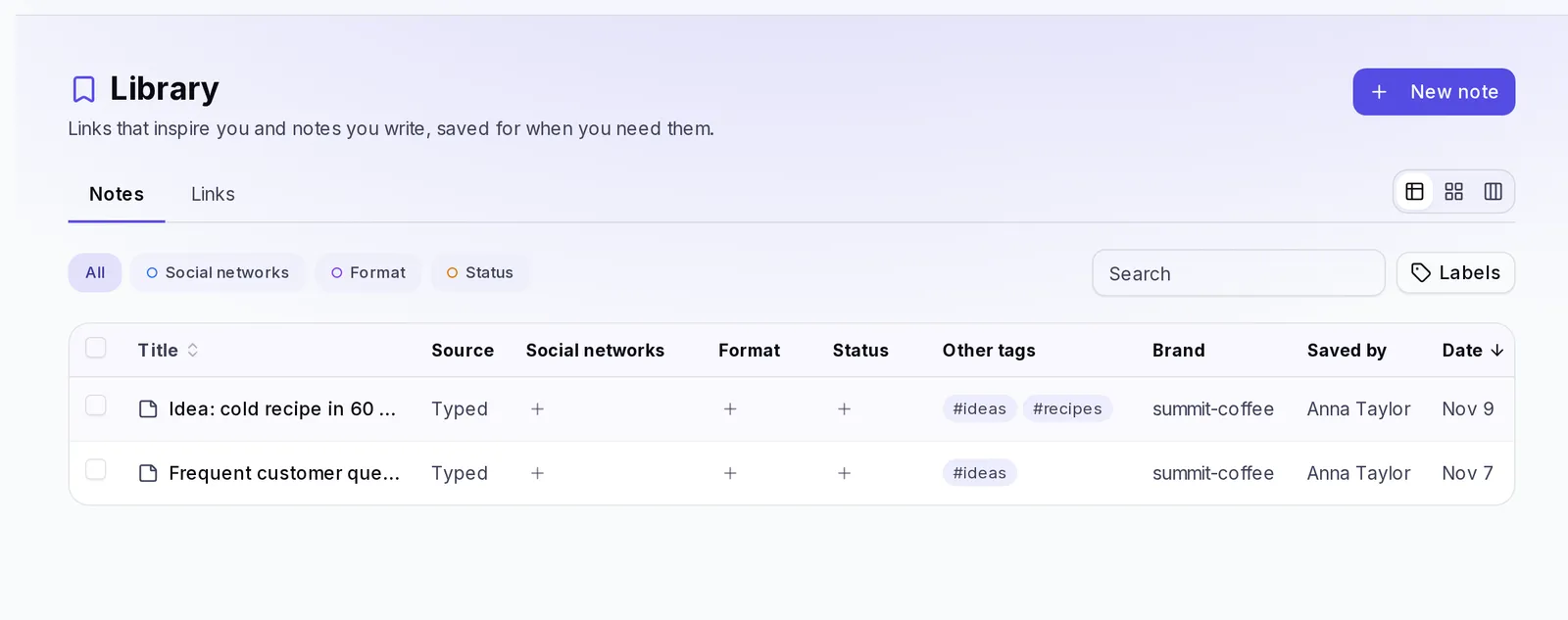
A tour of the screen
- Notes, Links and Instructions tabs: they separate what you write, what you save from other networks and the texts you reuse with the AI. Everything else (filters, buttons) adapts to the tab you're on.
- Group row: below the tabs you'll see your tag groups (for example Social networks, Format and Status), with how many items each one has. Tap one to see only what's in that group, or All to remove the filter.
- Views: at the top right you choose how to see your Library:
- Table: one row per item, with a column for each tag group, the brand, who saved it and the date. Tap a column name (Title, Date or, in Links, Network) to sort.
- Grid: cards, more visual.
- Board: only in Notes. Columns to move your notes from one status to another (we cover it below).
- At the bottom of the list you choose how many items to see Per page (25, 50 or 100) and move from one page to another.
Tap any item to open its details. There you see all its content and the buttons to work with it.
Create a note
- Open the Notes tab and tap New note.
- Write a Title that tells you why you're saving it (it's optional, but it helps you find it).
- Write your idea in Note.
- Add Tags: type and press Enter, or tap one of the Suggested tags.
- If the note belongs to a specific brand, choose it in Brand. If not, leave No brand.
- Tap Save. You'll see the message "Saved to your library".
Save a link
- Open the Links tab and tap Save link.
- Paste the address in Link. It has to start with https://.
- Give it a Title and, if you want, write in Note what you liked about that post.
- Add Tags and choose the Brand if it applies.
- Tap Save.
Krellot recognizes on its own which network the link comes from and shows it in the Network column: you don't need to tag it with the network's name.
If you had already saved that same link, you'll see "Saved. You already had this link." and it isn't duplicated.
Instructions: context you reuse
An instruction is a text you write once and reuse every time you ask the AI for something: your brand's tone, who you talk to, what it must never say, the theme of a campaign. E.g.: "My audience is entrepreneur moms aged 28 to 40. Always close with a question."
Create an instruction
- Open the Instructions tab and tap New instruction.
- Write a Name (it's what you'll see in the list when choosing it).
- Write the Instruction text. It can be up to 4,000 characters.
- Add Tags and choose the Brand if it's only for one. Without a brand, it works for all of them. If you're inside a brand, it's saved to that brand: check For all brands if you want to use it in any of them.
- Tap Save.
Use an instruction
Next to the fields where you ask the AI for something (Studio ideas, agent chats, stories, carousels, "Refine" a script, emails and more) you'll see the Use instruction button. Tap it, search for the one you want or filter by tag, and tap it: its text is added at the end of what you already wrote. You can review and change it before sending. Inside a brand you'll see that brand's instructions and the ones that work for all brands.
If the field doesn't have room for the whole text, Krellot tells you how much is over and adds nothing: shorten what you wrote and try again.
You can also create one from the same button with Create instruction, or save what you wrote in the ideas field with Save as instruction.
Use tags
Tags are words you add to your items to find and organize them. You can add up to 10 to each one.
They're organized in groups. Your Library starts with three suggested groups, which you can change or delete:
- Social networks: instagram, tiktok, youtube, facebook, linkedin, x, threads, pinterest. Use them to say where you want to publish that idea.
- Format: reel, carousel, story, long video, photo.
- Status: to do, in progress, used, discarded.
There are three ways to tag:
- When you create or edit an item, in the Tags field.
- From the table: tap a group's cell in the row you want and choose the tag. In each group an item has only one tag: if you change from "to do" to "used", the previous one is removed automatically. From that same menu you can Clear the tag or go to Edit tags….
- Several at once, as you'll see in "Work with several at once".
Organize your notes with the board
The Board turns your notes into a work list, with a column for each tag in a group.
- In the Notes tab, choose the Board view.
- In Columns by, choose the group. By default it uses Status, so you'll see columns like to do, in progress, used and discarded, plus a No status one.
- Drag each note to the column it belongs in. The tag changes automatically.
If you don't have groups with tags yet, the board will ask you to create one first.
Search and filter
- Search: type in the search box and the list filters as you type.
- Brand: choose a brand in All brands to see only its items. If you're working inside a brand, the Library already shows you only that brand's items.
- Network: in Links, choose a network in All networks to see only the links from Instagram, TikTok, YouTube, etc.
- Tags: tap the Labels button, search and check the ones you want. You can choose an entire group with Whole group. With several tags chosen, decide how to combine them:
- All: only items that have all the chosen tags.
- Any: items that have at least one.
- You can also tap a tag inside the list to filter by it.
Active filters show up as pills below the search box. To remove one, tap its pill; or tap Clear filters to start over.
If you see "Nothing matches those filters", you haven't lost anything: try fewer tags or clear the search.
Work with several at once
In the Table view, check the box of each row you want (or the one at the top to select everything visible). A bar appears with these actions:
- Add labels: adds tags to all the selected items.
- Remove labels: removes tags from all of them.
- Move to brand: assigns them to a brand.
- Delete: deletes them from your Library.
The selection only covers the page you're viewing.
Analyze a video link
If you saved an Instagram or TikTok video, you can analyze it without leaving the Library:
- Open the saved link (or use the actions menu on its row or card).
- Tap Analyze.
- You'll see "Analyzing the post… taking you to it." and Krellot takes you to Analysis, where you follow its progress and then read the result.
If you had already analyzed that post, you'll see "You already analyzed this post" and it takes you straight to its analysis, without repeating it. The Analyze button only appears on Instagram and TikTok links.
Send a note to the Brain
When a note has information your content must respect (a price, a promotion, a testimonial), send it to your brand's Brain:
- Open the note.
- Tap Send to Brain.
- Choose the brand and tap Send.
It's saved as a piece of information in that brand's Brain and you'll see "Saved to …'s Brain". The note also stays in your Library. From the Brain you decide whether that information is used or stays paused: we explain it in Your brand's Brain.
Turn a note into an idea
A note can be the starting point for your next piece of content:
- Open the note.
- Tap Turn into idea.
- If the note has a brand, Krellot takes you straight to the Studio with your note already written in the idea generator. If it's a general note, first choose the brand and tap Go to Studio.
- In the Studio you can add context and tap Generate ideas.
From there you carry on as usual: review the ideas and turn them into scripts. We explain it in Ideas and scripts.
Merge or delete tags and groups
To organize your tags, open Labels and tap Manage labels (you can also tap the name of a group's column in the table). The Labels and groups panel opens:
- Create a group: type its name in Group name and tap the button next to it.
- Create a tag: type its name, choose its group (or Ungrouped) and tap +.
- Move a tag to another group: use the Move to selector next to the tag.
- Rename: tap the pencil next to the tag or the group. The new name applies to everything you had already saved.
- Merge two tags: rename one with the exact name of another one you already have. Krellot asks you "Merge into a single label?"; tap Merge and all the items move to the tag that stays. This can't be undone.
- Delete a tag: tap the trash can. It's removed from the items that had it, but those items stay saved.
- Delete a group: its tags become Ungrouped. No tag or item is deleted.
Next to each tag you see how many items use it, or Unused. The groups your Library comes with have the Suggested mark, but you can change or delete them like any other.
Edit or delete something you saved
Open the item and tap Edit to change its title, note, tags or brand, or Delete to remove it. When you delete, Krellot asks you to confirm: it can't be undone.
On a link you also have Copy link and Open post, which opens the original post in another tab.
If something goes wrong
- "The link must start with https://": copy the full address from the browser or from the network's share button.
- I can't add more tags: each item allows up to 10. Remove one you no longer need.
- I don't see the Analyze button: it only appears on Instagram and TikTok links.
- "We couldn't load your library": reload the page. If it's still the same, check your connection and try again in a few minutes.