Feature guide
Your brand's Roadmap
Start from a template, or say where you want to get to and the Strategist builds you a plan with stages and tasks. Follow it in columns, over time or on a map.
In this guide
If your account has it available, you'll find it in the menu, under Roadmap, with your brand selected. Each brand has its own plan, and a brand has only one active plan at a time.
What you'll find here
- Your goal, at the top, with its date and the Tasks done bar ("5 of 13 done").
- The How to view the plan selector, with three views: Columns, Timeline and Map. All three show the same plan; each one answers a different question.
- The Open the Strategist button, to ask for changes to your plan.
- Expand, to see the plan full screen.
- At the end, Close this plan and your Past plans.
The Roadmap remembers the view you chose for each brand.
Start from a template
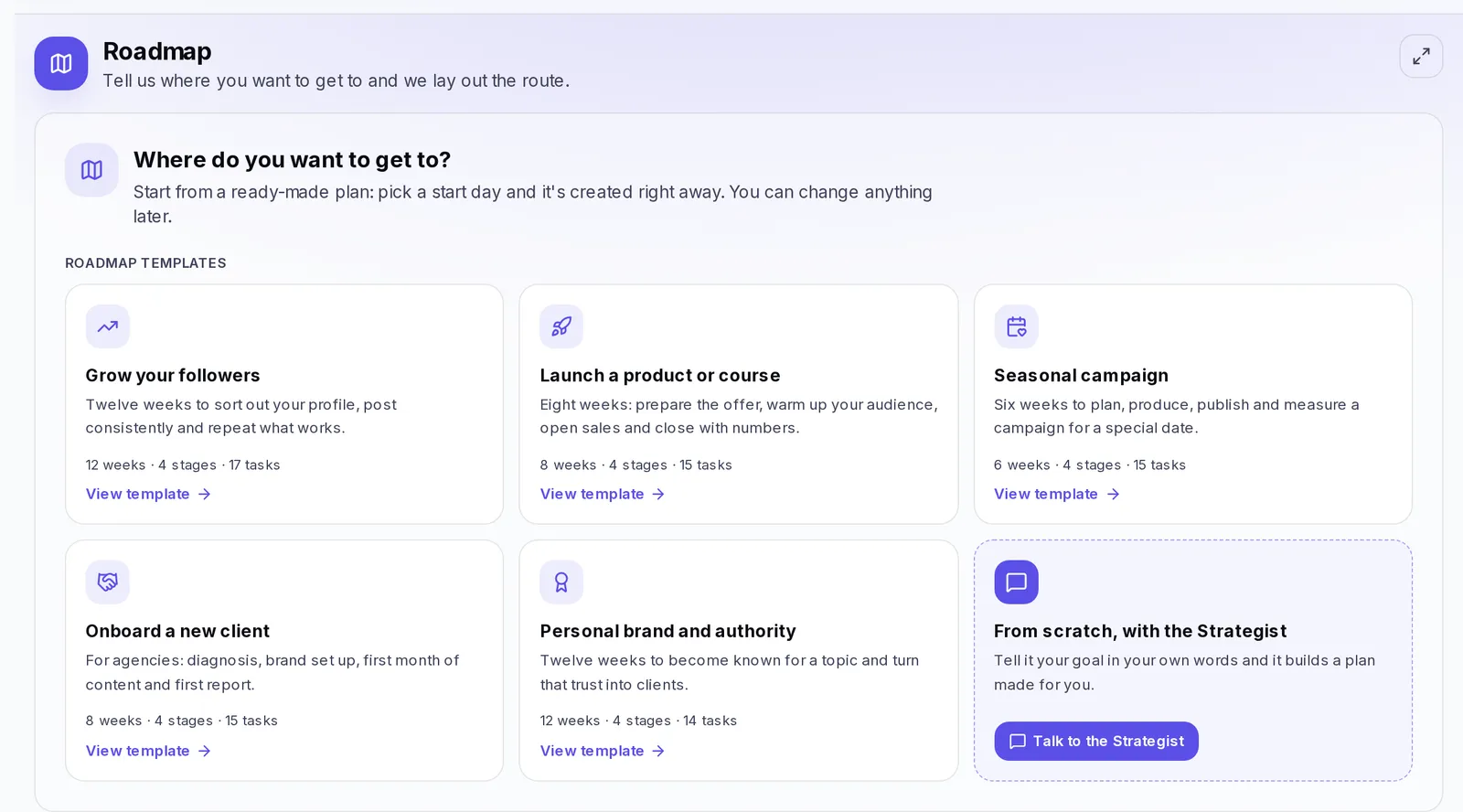
If your brand doesn't have a plan yet, you'll see Where do you want to get to? and the Roadmap templates: ready-made plans that are created right away, with no waiting.
- Grow your followers (12 weeks)
- Launch a product or course (8 weeks)
- Seasonal campaign (6 weeks)
- Onboard a new client (8 weeks, made for agencies)
- Personal brand and authority (12 weeks)
- Tap View template on the one that fits. You'll see its stages, its tasks and the date each one falls on.
- Your goal comes with a sentence already written: change it to your own.
- In When do you start? pick the start day (today, unless you change it). Stages and task dates are laid out from that day.
- In Grow your followers you can also fill in How many followers do you want to reach? and the network. It's optional.
- Tap Create plan. The plan appears on screen, ready to use.
Then you'll see Your plan is ready. If you tap Tailor it to my brand, the Strategist opens with a message already written so it adjusts the tasks to what you sell and to your audience; review it and send it whenever you like. It's optional: the plan already works as it is, and you can change any stage or task by hand.
Create a goal with the Strategist
If you'd rather have a plan made for you from scratch:
- In Where do you want to get to?, tap Talk to the Strategist (on the From scratch, with the Strategist card). Its window opens.
- Tell it your goal in your own words. You can tap a suggestion, like "I want to reach 10,000 followers" or "Build me a plan to launch my course".
- If it asks you something (by when, where you're starting from, what you have to work with), answer it.
- The Strategist builds the plan with its stages and tasks, and it appears on screen.
The more specific you are, the better the plan. E.g.: "I want to go from 3,000 to 10,000 followers on Instagram before December. I post 3 reels a week".
Ask the Strategist for changes
Tap Open the Strategist whenever you want. Ask it, for example, to adjust a stage, add tasks, give them dates or tell you what to do next. The changes appear in the plan right away. With the window's buttons you can make it bigger or smaller, and close it without losing the conversation.
How you're doing toward your goal
In Your goal there are two different things:
- Your goal's number. If it's a social media goal (followers, for example) and you have your account connected, the bar fills up on its own and says Measured from your connected account, with the date of the figure. If it isn't connected, tap Write where you are and type your number; you'll see You wrote this in. You can also tap Connect account.
- Tasks done. It's always there, even if your goal isn't a number (like "launch my first course"). It counts how many of the plan's tasks you've finished.
Stages and tasks
- A stage is a stretch of the path, with a start and end date. E.g.: "Stage 1: tidy up your profile".
- A task is something specific to do within a stage. E.g.: "Write 5 hooks for your September series".
- A milestone is a task that marks an important checkpoint, like "Course launch". It counts as one more task.
Each task has a status: To do, In progress or Done. If it depends on another one you haven't finished, Waiting on another task appears.
When a task has a date and still isn't done, whoever created the plan gets a notice the day before.
Columns view: what do I do today
It shows one stage at a time, with its tasks spread across columns by type of work (for example "Scripts", "Offer", "Ads").
- At the top, choose the stage in Plan stages. You'll see Stage 1 of 4 and how you're doing: On track, You're 3 days ahead, You're 2 days behind, Stage finished, etc.
- If you jump to another stage while leaving tasks open in the previous one, we remind you. You can carry on anyway.
- Each column says how many tasks are done, for example "2 of 5 done".
- Check a task's box to mark it as done, or tap the task to open its details.
Organize stages:
- Tap Add stage, type the Stage name and tap Save.
- To remove the stage you're looking at, tap Remove this stage. Its tasks go with it, and it can't be undone.
Organize columns:
- Tap Add column and give it a name.
- Use the pencil to Rename and the trash can to Remove column. The tasks in a removed column aren't deleted: they move to Unsorted.
Create and edit a task
- In a column, tap Add task.
- Type What needs doing? and, if you want, a Description with the why and the how.
- Choose the Priority (High, Medium or Low) or leave it unset.
- Choose the Column.
- In More options you can set the Due date (within the stage's dates) and Where does it get done?: the screen the Do it button will take you to, like the Studio, the Planner or the brand's Brain.
- Tap Save.
To change a task, open it and tap Edit task. To move it to another column, change its Column there. To delete it, tap Remove this task.
Complete a task
When you finish something in your plan, check it off to see how much is left:
- Find the task in any view. In Columns it's in its stage's column.
- If you've started but haven't finished, open it and under Status tap In progress.
- If the task takes you to another screen (for example, to the Studio to write a script), tap Do it in its details and do the work there.
- When you're done, check the task's box, or open it and tap Mark as done.
The task becomes Done, the Tasks done bar in Your goal moves forward and the tasks that depended on it are free to start. If you marked it by mistake, open it and tap Move back to to-do.
A task's details
Tap any task, in any view, and its Task details open:
- Status: tap To do, In progress or Done.
- Priority.
- Target date and Starts on. With both dates, the task is drawn as a bar in the Timeline view. With Clear the date you leave it without a day.
- Depends on: the tasks that have to be finished first. Tap Add a task it depends on to add one, or Remove this arrow to drop it.
- Unblocks: the tasks that open up when this one is finished.
- Notes: they save on their own when you leave the field.
- Turn into a milestone (or Back to a regular task).
- Do it: takes you to the screen where that task gets done, with the topic already filled in.
- Mark as done or Move back to to-do.
Filter tasks
In all three views you can filter by All, To do, In progress, Blocked, Overdue or Completed. Each filter shows how many tasks it has.
Timeline view: the timeline
It's a calendar of the plan: each stage is a row, each task sits on its day and a line marks Today.
- In How much time you see at once choose Week, Month or Whole plan.
- Use Today and the previous and next period arrows to move around.
- Hide done hides what you've already finished, and Show one stage only leaves a single row.
- Tap What each color means to see the legend.
Dates and duration:
- A task with a single day is a dot. A task with a start and end date spans several days and shows up as a bar.
- A task with no date goes in a box inside its stage: it gets done at some point during that stage.
- Each stage says whether it's Finished, whether it's the Now one, whether it's Coming up or in how many days it starts.
Overdue tasks:
- A task that's past its date without being done shows up as Overdue.
- If a stage closed with things still pending, you'll see how many were left. That's fine: move them to the current stage or check them off if they no longer apply.
- Each stage also tells you how many tasks are past their date and how many are due soon.
If the plan has no dates, ask the Strategist to add them to the stages and you'll see the whole path.
Map view: how the plan connects
It shows Your goal, the stages as boxes, the tasks inside them and the milestones shaped like diamonds. The Current stage is highlighted.
Dependencies:
- An arrow from one task to another means the first one blocks the second: you can't start the second until the first is finished.
- To create an arrow, drag from a task's dot to another task.
- To remove it, open the task and, under Depends on, tap Remove this arrow next to the task that no longer blocks it.
- With Dependencies you show or hide the arrows.
- When you open a blocked task you'll see what's holding it back: "You can't start this until … is done". If it doesn't depend on anything, it says Ready to do.
Route to the goal:
- Some tasks on the map have a bolder violet border: they make up the Main path to your goal. They're the ones you shouldn't put off. In the Legend you'll see its sample next to the others.
Moving around the map:
- Drag the cards to arrange them. It saves on its own.
- Use Zoom in, Zoom out and See everything.
- Rearrange the map puts everything back the way it was at the start.
- Legend explains each shape and color.
Close a plan
When you reach your goal, or if you decide to change course:
- Tap Close this plan, below the plan.
- In How did this plan end? choose I made it or Leave it behind.
The plan is saved in Past plans and you can start a new one, from a template or with the Strategist. Open it whenever you want to see what you did; it's read-only. Tap Back to my plan to go back.
If something doesn't work
- "Pick a brand to see its plan": choose your brand in the menu's selector.
- I can't change anything: if your role in the account is read-only, you can see the plan and the templates, but not create or edit. Ask the account owner to change your permission.
- "This brand already has a plan in progress": a brand has only one active plan. If you want to start another, first tap Close this plan.
- The plan has no dates: ask the Strategist to add dates to the stages and tasks.
- "We couldn't save your change": check your internet connection and try again.