Feature guide
Stories, covers and downloadable resources
Create story sequences, covers for your videos and downloadable resources like guides and checklists.
In this guide
Stories
In the Stories tab you create stories for Instagram or TikTok designed for a goal: selling, engaging, educating, humanizing your brand or launching something. At the top you choose what you want to get:
- Story: a complete sequence of several frames (screens), ready to turn into images and publish.
- Ideas: standalone concepts to choose from later. They don't get turned into images: they're there to inspire you. Type the topic, choose the Count (from 1 to 20) and tap Generate.
Create a story sequence
A sequence is several screens viewed one after another: it opens with a hook, develops the idea and closes with a call to action.
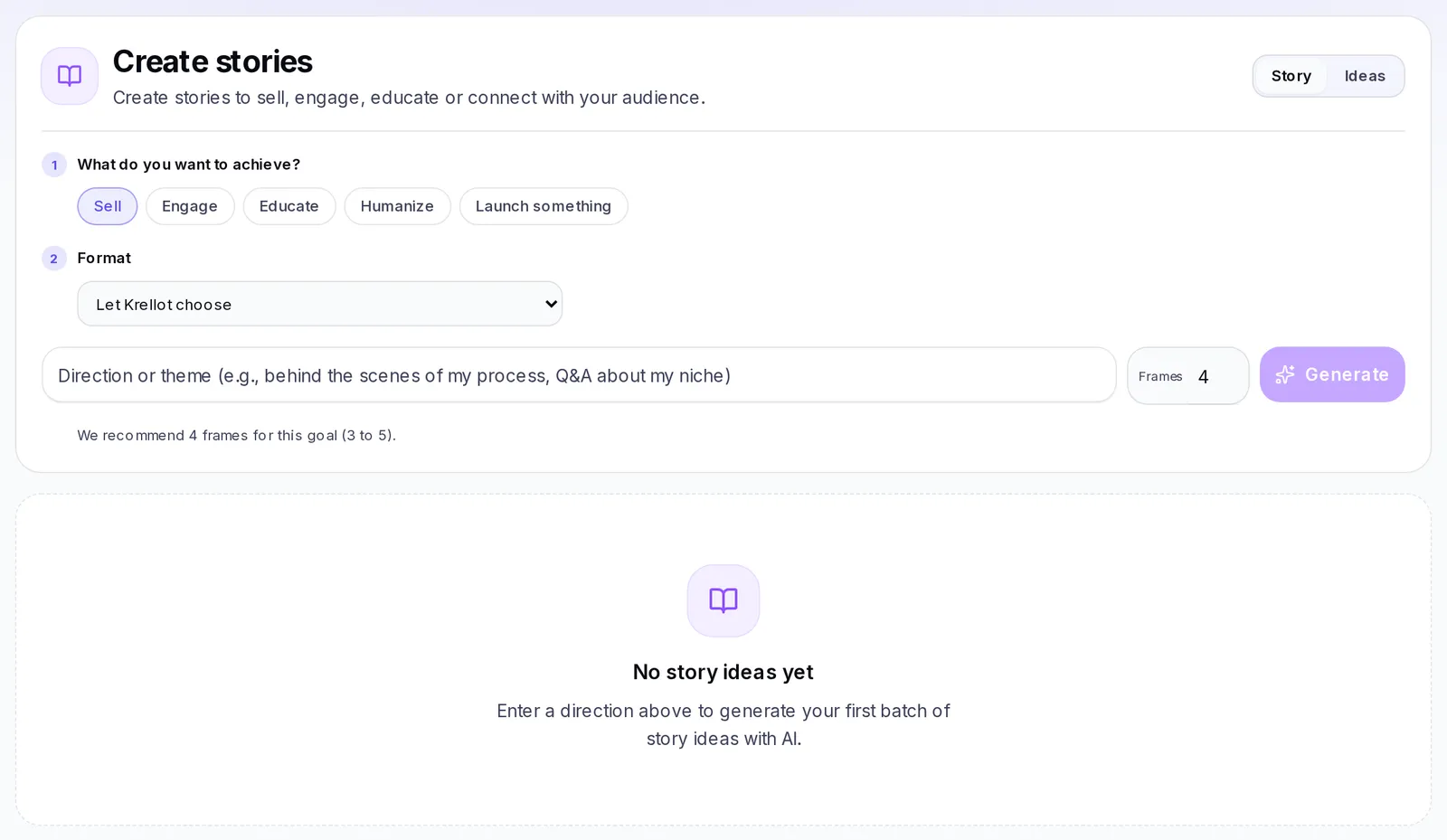
- Open the Stories tab and choose Story.
- In What do you want to achieve?, choose your goal (we explain it below).
- In Format, choose how to tell it, or leave Let Krellot choose.
- Type the topic in the Direction or theme box (for example, "behind the scenes of my process").
- Adjust how many Frames you want. Below, you'll see how many we recommend for that goal.
- Tap Generate.
Your story appears in the list with its goal and its format. Open it to see each frame, the Hook (first frame) and the CTA (last frame). On each card you can Edit, Pin to top the ones you like most, Send to chat or delete it. With search and the goal filters you can quickly find the ones you already have.
Choose your stories' goal
The goal decides how the story is put together and which formats you can choose. Choose the one that describes what you want the viewer to do:
- Sell: to move a product or service. Formats: Sales sequence, Offer or promo, Social proof, Problem → solution, Comparison and Featured product. If you choose Offer or promo, you can pick one of the current promotions in your Brain so the story uses its price, its dates and its conditions.
- Engage: to get people to reply. Formats: Direct question, "Give me your take", "Which one?", "Has this happened to you?", "Tell me your experience" and One word by DM.
- Educate: to teach something useful. Formats: Mini guide, Quick tip, Step by step, Myth vs reality, FAQ, "3 things to know" and Common mistake + fix.
- Humanize: to show the people behind the brand. Formats: Behind the scenes, Day to day, Creation process, Mistake and lesson and Packing orders.
- Launch something: to build anticipation before something new. Formats: Sneak peek, New product and "Drops tomorrow".
When you change the goal, the number of Frames adjusts by itself to the one recommended for that goal. You can change it within the range shown on screen.
Generate your stories' images
Turn your story into vertical images ready to upload, with your brand's colors.
- Open the story from its title.
- In Images ready to post, review the text of each frame. You can change it right there.
- If you want a photo on a frame, tap Choose photo and pick one of your brand's images, or upload a new one with Upload file. You can Change or Remove the photo later.
- Choose the Theme: Dark, Light or Brand color. If your brand has several visual identities, also choose which one to use in Identity.
- Tap Generate images. You'll see "Creating your images…" while they're being prepared.
When they're ready you'll see Your stories are ready to post. From there you can:
- Tap an image to see it full size.
- Download all to download all the images at once.
- Copy caption to take the post's text with you.
- Edit text: change whatever you want and tap Generate images to replace the images.
- Regenerate to create the images again, for example with another theme.
Covers
Create a video's cover from one of your scripts:
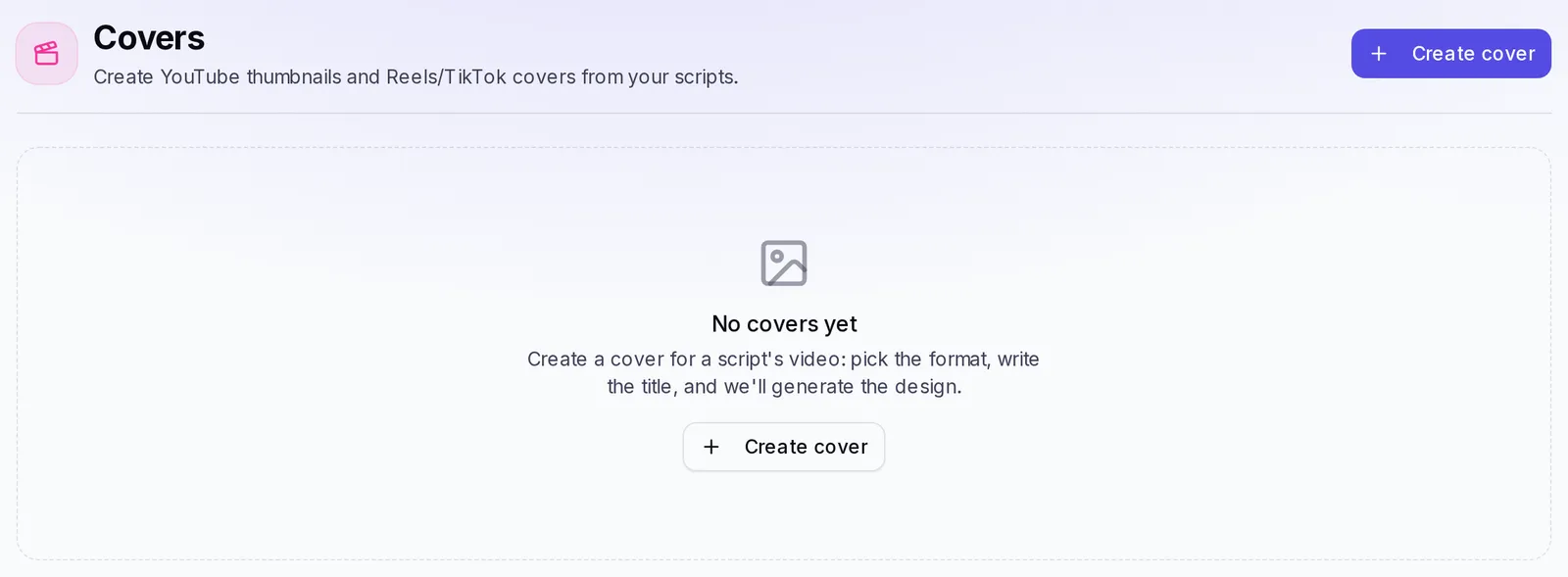
- Tap Create cover.
- Choose the Script, the Format (YouTube or Reels & TikTok) and type a short Title. Tap Next.
- In Customize cover, choose the Cover background: Create with AI, Upload photo, From a video or Brand color.
- Use Suggest titles if you don't know what to write, adjust the font and the colors, and tap Generate.
- When it's ready, tap Download.
Use your brand's identity
Your covers can carry your brand's colors so they're all recognizable as yours.
- Open the cover with Customize (or Edit, if it's already generated).
- In Theme, choose Brand colors. You can also choose Dark or Light.
- If your brand has several visual identities, choose which one to use in Brand identity.
- If you don't want a background photo, choose Brand color in Cover background.
- Tap Generate (or Save, if the cover already existed).
The colors come from your brand's Identity tab. If you change them there, open the cover again and save it so it picks up the new ones.
Save and reuse a cover
Every cover you generate is saved automatically in the Covers tab, grouped by format: YouTube and Reels · TikTok. Use the filters at the top to see All or just one format.
To use a cover again:
- Tap Edit on its card.
- Change the title, the subtitle, the badge, the font or the colors.
- Choose how to save:
- Save keeps the same background and only applies your changes.
- Regenerate background creates a new background with the option you chose in Cover background.
- Tap Download to download the new version.
You can also Send to chat a cover to share it with your team.
Freebies
In the Freebies tab you create downloadable PDF resources to give away to your audience.
Freebies aren't on every plan. If yours doesn't include them, when you tap Generate you'll see the notice "This feature isn't included in your plan". To use them, switch to a plan that includes them.
What a freebie is
A freebie is a free resource you give to your audience: a guide, an e-book or a list of steps that solves a specific problem. It's used to give value and, above all, to get contacts: the person leaves you their email or messages you in exchange for receiving it. It's a good way to turn someone who sees you on social media into someone you can keep talking to.
Types of freebies
Choose the type before you generate:
- E-Book: a short book with chapters, conclusions and key points. Ideal for explaining a topic in depth.
- Guide: a practical step-by-step with instructions, tips and examples.
- Checklist: a list of tasks to check off, grouped by topic. Ideal for something the person wants to put into practice right away.
- Lead Magnet: a high-value resource with exclusive data and ideas, which closes by inviting the reader to take the next step with you.
They all carry your brand's colors and end with a page so people can contact you.
Create a freebie
- Open the Freebies tab.
- Choose the type.
- Type the Topic (for example, "10 tips to grow your Instagram if you're a restaurant").
- Choose how many Pages you want, from 5 to 30.
- Tap Generate. You'll see the progress while it's being created.
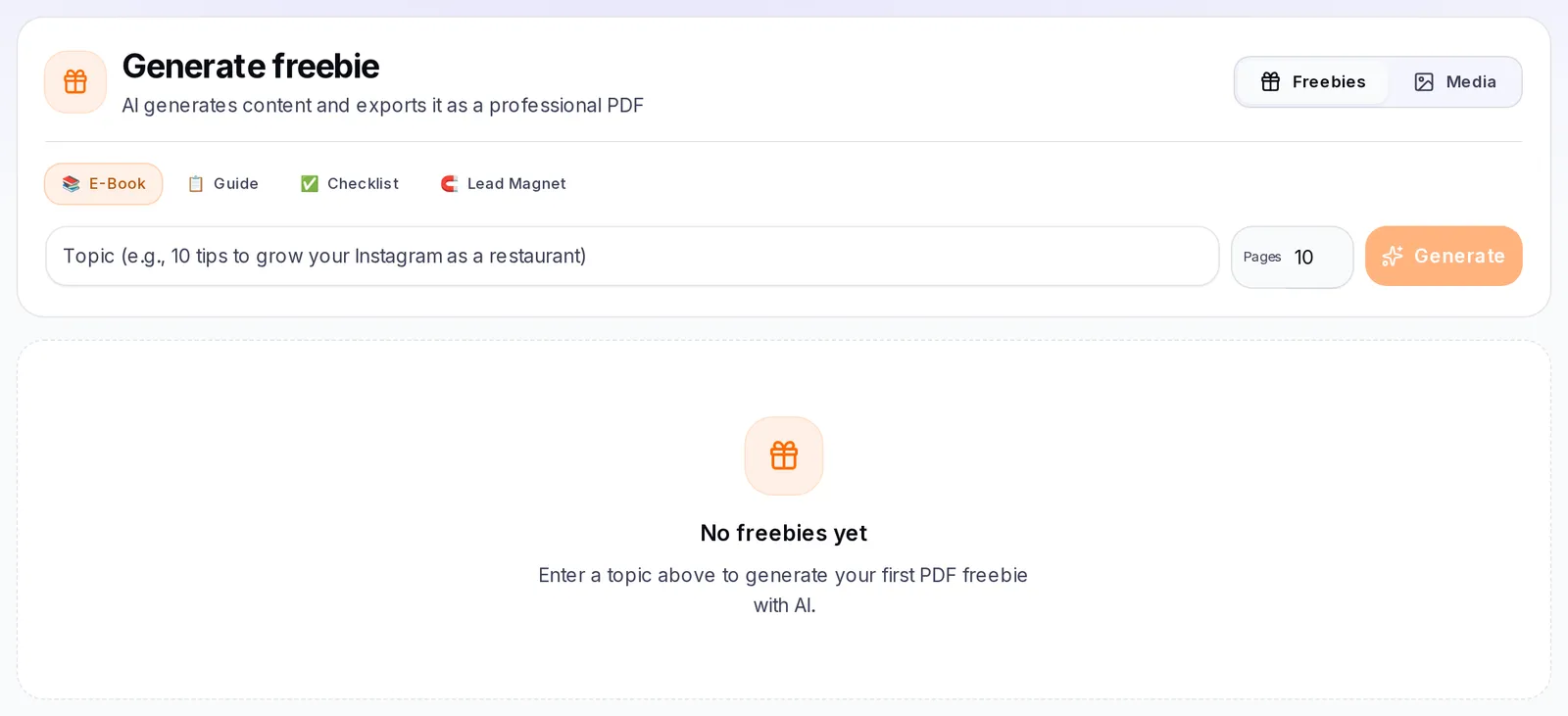
When the freebie says Ready, tap Download PDF.
The two Freebies tabs: Freebies and Media
Inside Freebies there are two small tabs at the top:
- Freebies: where you generate your resources and see the list of the ones you've already created.
- Media: where you keep photos, logos and other brand files to use in your ideas, covers, stories and emails. It's the same collection we explain in Media. Tap Choose File and choose an image or a PDF of up to 10 MB. To delete a file, hover over it, tap the trash can and confirm with Delete media.
Search and delete a freebie
- To find one, type in Search freebies…, above the list.
- To delete it, hover over its card and tap the trash can that appears at the top right. Confirm with Delete freebie. Only the account Owner can delete freebies and files.
Adapt a freebie to your audience
A freebie works when it speaks to a specific person with a specific problem.
- Review your brand's Audience section: who your customer is and what pains them. The more specific it is, the better your freebies speak to them. We explain it in Audience.
- Write a topic that says who it's for and what it solves. Instead of "Instagram", try "10 tips to grow your Instagram if you're a restaurant".
- Choose the type according to what that person needs: a Checklist if they want to act right away, a Guide if they need to learn how to do it, an E-Book if they want to understand the topic in depth.
- Adjust the Pages: fewer pages for a resource that's quick to read, more for a complete one.